Effora
For iPhone, iPad and Mac
iCloud storage full? Here is how to clear it
It is usually photos and old backups. Here you can see what fills your storage, what you can safely delete and what you should back up first.

For most people that does not last long
5 GB holds roughly 2,000 photos, without a backup. Add a device backup and videos, and the storage fills up fast. Then your iPhone stops backing up to iCloud and no longer uploads new photos.

What takes up space in iCloud
You can find the overview in Settings under your name, then iCloud. The bar splits it by category.
Photos and videos
almost always first
iCloud Photos stores every picture and every video at full size. Long 4K videos, series and duplicate photos weigh in the most. This is where cleaning up helps the most.
Backups
Every device has its own backup. Old phones and tablets often stay in there for years.
Messages
Photos and videos in chats are stored too when Messages syncs with iCloud.
“Optimize Storage” only saves space on the iPhone
With this setting, the iPhone keeps space-saving versions while the originals stay in iCloud. It changes nothing for your iCloud storage. If your phone itself is full, the guide Phone storage full can help.
What fills your iCloud storage?
You can see the number of photos and videos at the very bottom of the Photos app, and the size of your backups in the iCloud settings. The estimator works with rough values.
Your iCloud storage needs about
0 GB
- Photos
- Videos
- Backups
- Drive, Messages, Mail
Free up iCloud space in six steps
Back up first, then the big chunks. Deleting in iCloud Photos affects all your devices.

-
Make a copy first
If you delete a photo while iCloud Photos is turned on, it disappears from all devices using the same account. Back up what you want to keep first, for example to a computer or an external hard drive.
-
Check “Recommended for You”
In Settings under your name and iCloud, this section shows suggestions, such as large files or old backups. A good first step.
-
Delete old backups
Under iCloud, then Manage Storage or Manage Account Storage and Backups, you will find all your devices. Backups of devices you no longer have can be removed with Turn Off and Delete from iCloud.
Good to know: If you turn off iCloud Backup for a device, its last backup stays available for 180 days.
-
Shrink your backup
In the backup of your current device, you can turn off apps whose data you do not need to back up to iCloud. Their data is then removed from the backup. Some apps are always backed up.
-
Clean up photos and videos
Long videos, series, duplicates and screenshots first. How to find duplicates is explained in the guide Find duplicate photos.
Watch out: Items in “Recently Deleted” do not count toward your iCloud storage. But if you are over your limit, the device removes deleted photos right away, without the usual 30 day grace period.
-
Messages and iCloud Drive
Delete large attachments in chats and old files in iCloud Drive. Deleted Drive files stay in “Recently Deleted” for another 30 days.
Where to find what
The names may differ slightly depending on the version.
iPhone and iPad
- Settings, then your name, then iCloud: a bar with all categories.
- Manage Storage or Manage Account Storage: a list sorted by size.
- Backups: all devices, and inside each one the apps in the backup.
- Photos: turn iCloud Photos on or off for this device.
Mac
- System Settings, then your name, then iCloud.
- Manage shows the categories and backups.
- Select a backup and delete it with the minus button.
- On a Mac, you can export photos to an external hard drive before you delete them.
Frequently asked questions
What happens when iCloud storage is full?
Your device stops backing up to iCloud, new photos are not uploaded, iCloud Drive stops staying up to date, and you cannot send or receive email with your iCloud Mail address.
Does “Optimize iPhone Storage” save space in iCloud?
No. The iPhone keeps space-saving versions, while the originals stay in iCloud. The setting only helps when the phone itself is full.
Can I turn off iCloud Photos to save space?
Then your device stops uploading new photos, but the existing ones stay in iCloud and keep taking up storage. Before you delete them there, download the originals to a device and back them up to a second place.
Do photos in shared albums count?
With a shared library, the photos count toward the storage of the person who created them. From iOS 27, this also applies to shared albums. Photos deleted from a shared album are gone immediately.
How much iCloud storage is free?
5 GB. With iCloud+ you get 50 GB, 200 GB, 2 TB, 6 TB or 12 TB, which you can share with up to five family members.
Store smaller instead of buying more
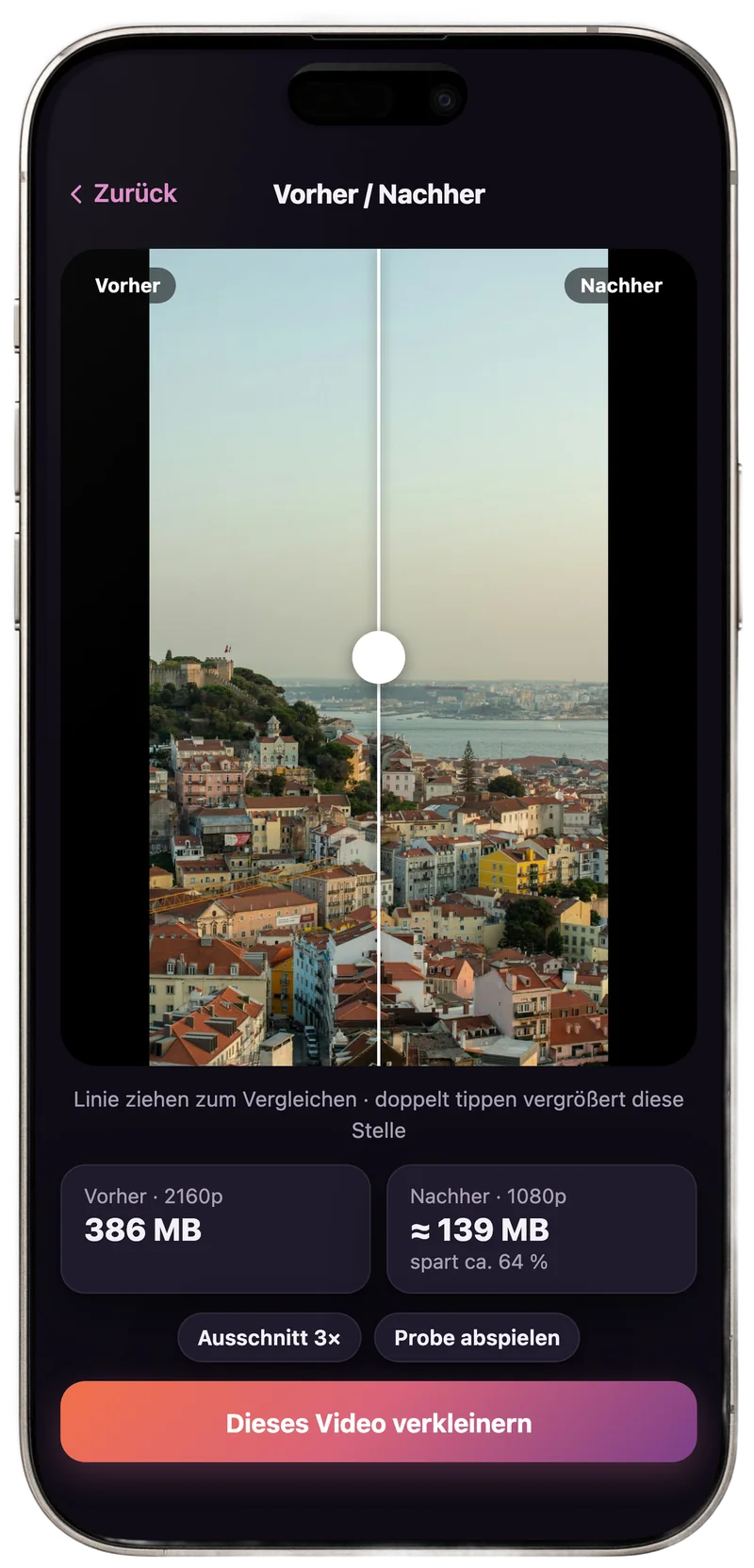
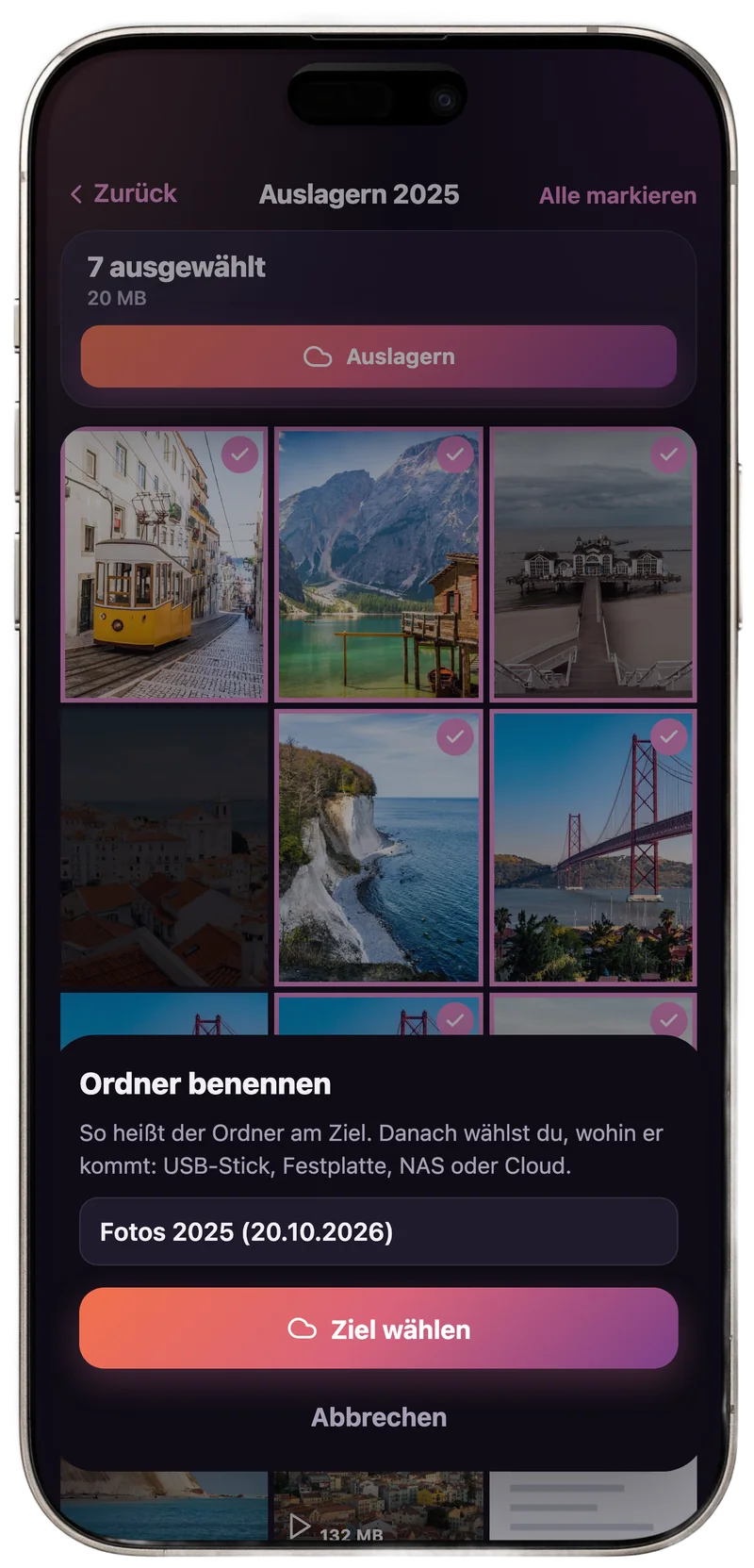
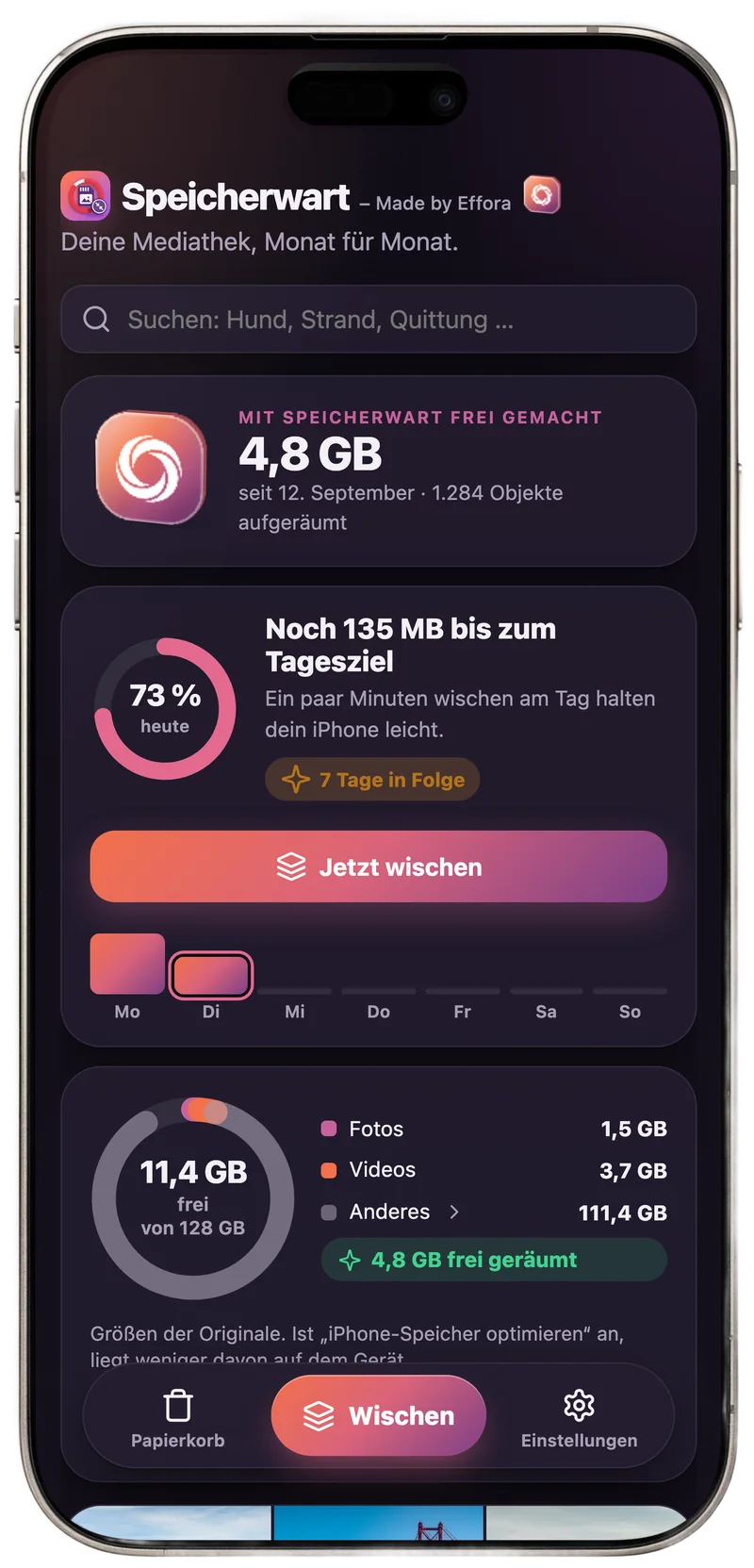
SpaceKeeper is the gallery app from Effora. It shrinks large videos and photos without visible loss and moves originals elsewhere when you no longer need them in your library.
- Compare before and after, date, location and albums are kept
- Move files to a USB stick, hard drive or NAS, with a check at the destination
- Find copies and series, everything runs on your phone